I was running my test TFS server on an eval version of SQL server. I now have a full version, the eval ran out so I thought let's upgrade! Ha!
You can upgrade SQL server versions, but only if the original service is running. No good if your eval has expired! Started installing everything from new, but getting silly errors somewhere around the SPS set up. This is about the 4th time I've installed TFS and it's still a pig.
Meanwhile I thought it was about time I used CodePlex's TFS server with LizardTF to see how it works. There is now source code available from:
http://www.codeplex.com/lizardtf/SourceControl/ListDownloadableCommits.aspx
It is very bleeding edge at the moment as I settle in the new c++ shell extensions.
Playing with my source code in CodePlex made me make some optimisation work a high priority, and I also got a bit annoyed with the '_ltf' folders, a system copied from TortoiseSVNs '.svn' folders. I have now moved the meta data to it's own 'special' folder, thus keeping the actual working folders clear of Lizard meta data, allowing easier zipping, browsing etc etc. The metadata for each working folder is now stored in a special folder (configurable) using a hash of the working foldername to flatten the hierarchy. I have just written (borrowed from MSDN MD5 sample, and another Base64 sample) a c++ folder path hasher, that miraculously matches the one I wrote in c# using System.Security.Cryptography.MD5CryptoServiceProvider and Convert.ToBase64. This allows the shell extensions to keep quiet unless metadata exists, leaving performance for browsing non-TFS folders unchanged. Browsing TFS working folders over the internet to CodePlex is a little slow (4-6 seconds for a folder with 30-40 files in it) but it is usable. I'll be thinking of how to allow customising the functionality for slow connections.
I think I've got the extensions pretty stable now, so will be looking to get a build out soon, Alpha 0.3.1, I guess.
May be then I can get on with some of the functionality I've meaning to do for over a year now....
Showing posts with label LizardTF. Show all posts
Showing posts with label LizardTF. Show all posts
Sunday, 14 September 2008


Sunday, 13 April 2008
New Release LizardTF.alpha.v.0.2.9
It's been a month and a half, which is far longer than I intended, but a new release is now available. I've been using Lizard at work in all the situations where Team Explorer annoys me too much, and that has driven a fair bit of the latest release, so some of the areas I intended to do more work on have actually been left behind a little (full conflict resolution with renames, moves etc), and other areas, such as WorkItems are ahead of plans.
Also in this time my VS-TFS 2008 Beta licence expired and it took a while before I could set up a shiny new VM server running the old 2005 version. I thought it ran out in April, but hey ho.
I need to do a whole bunch of screen shots, really, for this release as there are lots of new screens to handle labels, WorkItems, shelving, unshelving, branching and a Repository Browser, hopefully I'll post this over the next week. But just right-click a file/folder that belongs to a workspace in Explorer and have a look. Hopefully it's fairly intuitive if you're use to TFS/Team Explorer or SVN/TortoiseSVN
All in all, Lizard is going rather well. This release isn't as complete as I'd like it to be, but I thought I should get something out. Otherwise it's easy to keep putting off and putting releasing anything. Obvious omissions from this release that I'll address soon are: Deleting labels, right click menu options from the Review screen, Move and Rename options. The labeling screens haven't been tested very hard.
Next up, the review screen will show files that have not been checked out, but have been changed (with an option to check them out) - handy if you're not using VS and you're a bit lazy and I'll finally sort out the rename/move conflict resolution and branch merging.
The 'fun' bit of this release was changing the already 'interesting' list/tree view of the review screen to use VirtualMode (that is creating ListViewItems on demand, rather than all up front). The MS implementation of this feels a bit last minute as although your list views are much faster, they don't support groups, images or checkboxes, Lizard uses all three, but the images and checkboxes were already custom drawn, now the groups are custom handled too. One happy consequence was that it actually made column sorting easier. The whole thing now feels much slicker and smoother, especially when dealing with large file sets, and the tree expansion and collapsing looks much better too.
Tuesday, 26 February 2008
You wait all month for a release, then three come along at once
Oh poop.
Playing with the new release today I discovered the exe/dll version differ was keeping locks on any .net assemblies as it loaded the whole assembly, rather than just the name. Which is rather unacceptable so there is a new 0.2.2 release on Codeplex now. While I was there I also made it so you could drop and drag other dll/exes onto the form and it would show the version info for those.
Then I discovered that when I added the Work Items list to the History Browser I inadvertently detached the click, double click and right click events from the details list, so I've fixed that now too.
Hopefully that's it until merging, branching and renaming conflict resolution is complete.
Sunday, 24 February 2008
New Release LizardTF.alpha.v.0.2.0
Yep, that's right, I've finally published a release, here is some of what is in it:
Conflict resolution:

One spanking new merge/conflict resolution tool! Colours are a little toned down a bit since the prototype (below), but it took a while to get from prototype to production code, mainly due to the number of scenarios involved. I wanted the merge output window to show exactly what would be written out/saved, so where lines are removed these are shown only in the margins. The lines above and below the 'missing' section right-click to give 'redo above' or 'undo-merge below' options. Some lines can have both above and below options which can be for undo/redo merges or undo resolution.
Hopefully the system should be fairly intuitive to use and should be much better than the MS DiffMerge tool.
Options include:
Two diff views, diff view and merge/conflict view.
Diff view shows differences base:server (theirs) on the left and base:local (yours) on the right. Blank lines are used to keep the files in sync. In merge/conflict view all conflict areas are highlighted and all changes base:server that can/will be merged are shown merged into the right hand base:local view. Clicking between them and looking at the results is proably the best way to get a feel for this.
Context lines
Quite often there are long sections of code with no changes/conflicts, you can choose not to see them by choosing how many context lines around changes/conflicts to show
Three Layouts
Arrange the two diff views and output windows all side-by-side (good for wide screen monitors), diffs together, output beneath (like the MS DiffMerge tool), or my favorite, diffs side-by-side and output in a different window (great for twin monitor set ups)
Also :
Help Text
Don't know what all the colours mean? Hover over any coloured section and help text will explain what the section is showing.
Also new in this release a new history browser:
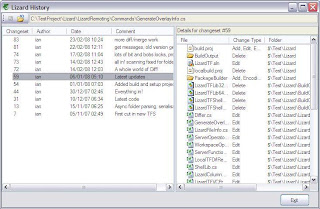 History on the left, full details of check-in on the right. Clink file on right to see history of that, use back button to return, or up-level button for folder history. Right click one or two versions for diff options.
Fed up with the 'Binary Files Differ' response when diffing dlls? Not with LizardTF:
 (test data a little suspect, but trying to diff dlls or exes will give this screen to compare version stamps, etc)
Text diffs are like this:
 (note line differnces shown beneath)
or:
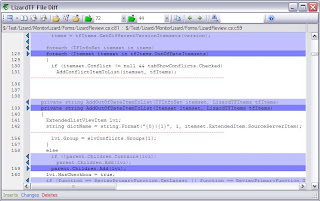 (inline diff, only three context lines).
Note the left and right folder/repo/version browse buttons. once a diff is in view you can reload either side from any file or repository item. If a repository item is loaded you can choose any historic version.
All version picker combo boxes have a 'browse' item, when selected this launches the history browser (shown above) to help you pick the right version.
Also from the explorer context menu:
Blame (anotate) shows originating changeset id/author for all lines in a source file.
Check out/lock, allows locking
Lizard Review, shows all conflicts, out-of-dates, pending changes and other checkouts for selected path
Get specific version - version combo for 'Get' option now works!
Create Workspace option asks if you want to get latest for new workspace and scans/builds Lizard meta data.
Soon I am going to have to write a manual.
Conflict resolution:

One spanking new merge/conflict resolution tool! Colours are a little toned down a bit since the prototype (below), but it took a while to get from prototype to production code, mainly due to the number of scenarios involved. I wanted the merge output window to show exactly what would be written out/saved, so where lines are removed these are shown only in the margins. The lines above and below the 'missing' section right-click to give 'redo above' or 'undo-merge below' options. Some lines can have both above and below options which can be for undo/redo merges or undo resolution.
Hopefully the system should be fairly intuitive to use and should be much better than the MS DiffMerge tool.
Options include:
Two diff views, diff view and merge/conflict view.
Diff view shows differences base:server (theirs) on the left and base:local (yours) on the right. Blank lines are used to keep the files in sync. In merge/conflict view all conflict areas are highlighted and all changes base:server that can/will be merged are shown merged into the right hand base:local view. Clicking between them and looking at the results is proably the best way to get a feel for this.
Context lines
Quite often there are long sections of code with no changes/conflicts, you can choose not to see them by choosing how many context lines around changes/conflicts to show
Three Layouts
Arrange the two diff views and output windows all side-by-side (good for wide screen monitors), diffs together, output beneath (like the MS DiffMerge tool), or my favorite, diffs side-by-side and output in a different window (great for twin monitor set ups)
Also :
Help Text
Don't know what all the colours mean? Hover over any coloured section and help text will explain what the section is showing.
Also new in this release a new history browser:
 History on the left, full details of check-in on the right. Clink file on right to see history of that, use back button to return, or up-level button for folder history. Right click one or two versions for diff options.
Fed up with the 'Binary Files Differ' response when diffing dlls? Not with LizardTF:
 (test data a little suspect, but trying to diff dlls or exes will give this screen to compare version stamps, etc)
Text diffs are like this:
 (note line differnces shown beneath)
or:
 (inline diff, only three context lines).
Note the left and right folder/repo/version browse buttons. once a diff is in view you can reload either side from any file or repository item. If a repository item is loaded you can choose any historic version.
All version picker combo boxes have a 'browse' item, when selected this launches the history browser (shown above) to help you pick the right version.
Also from the explorer context menu:
Blame (anotate) shows originating changeset id/author for all lines in a source file.
Check out/lock, allows locking
Lizard Review, shows all conflicts, out-of-dates, pending changes and other checkouts for selected path
Get specific version - version combo for 'Get' option now works!
Create Workspace option asks if you want to get latest for new workspace and scans/builds Lizard meta data.
Soon I am going to have to write a manual.
Thursday, 31 January 2008
Well, it's certainly colourful...
I use to use TortoiseSVN a lot. It is the inspiration for LizardTF. I was pretty good at branch management and use to do the hard to keep up with merges for some of my colleagues. I quite liked the 3-way diff/merge tool, but could never understand all the colours. It seemed to have hundreds, and I never found a key.
Zoom forward a year and a bit, I use TFS at work now, I hate the Microsoft merge tool, so I'm writing a fresh one. I've got the two-way diffs all sorted (should be released this weekend) and I'm feeling all cocky, I can read the diff3 output, and I'm ready to go...
So you've got add, deletes and changes, easy. You have changes which are the same in both server and local files, you don't have to anything with these, easy. You have changes only on the server, these can merge straight into the local target, still easy. You have different changes to server and local, mark it up as a conflict, still pretty easy. These conflicts can be any of the three types on either side. Arrrggghhh! How many variations of add, deletes and changes do you end up with? Loads. How many colours do you need to clearly identify them all? Too many!
 Here is the V0.1 LizardTF 3-way-diff visualiser. Base/Server changes shown inline on the left, Base/Local changes shown inline on right. Green for inserts, Blue for changes, Red for deletions, pale shades where the same change has already been made to both server and local. Mid colours for changes on the server which are mergeable (no change on local/local matches bases), and dark colours with yellow text and square glyphs for your actual, needs intervention, conflicts. Plus the usual mark up of base/local changes*.
So there you go. No wonder TortoiseSVN was rather colourful.
Scintilla also offers quite nice TipText, so hovering over a marked area will display a pop-up text describing the meaning of the colours. (not shown).
*Only if the local target shares the base with the server. With LizardTF it will be possible to merge changesets/diffs into any target irrespective of origin.
Sunday, 20 January 2008
Blame and Diff 2
It's nearly complete now, and will be in the next alpha release in the next couple of days. One window shows diffs and blames and allows the user switch between. Nice features are:
 Diff tool showing side-by-side view
 Blame; red shows uncommitted changes, green the last additions
 Inline, showing only 5 context lines.
- Side-by-side or Inline diff views
- Line to line diff shown at bottom for side-by-side view
- Can show any number of context lines in Inline view
- File browser to load alternative right/left files
- Repository browser to load alternative repository files
- Version combos to quickly change which versions you are comparing
- Instance switch to Blame view for either right or left hand side
- Blame shows originating changesets and author for each line and uncommitted local changes if ran for local file. (can also be ran for any repository version)
- All line differences marked in main view
- Find functions - quick find and a more featured find
- Context line options for Side-by-side view
- Click on Blame line/changeset id number to show diff to that version
- Click on Blame line/changeset id to get full description of changeset
- Switch for visible whitespace
 Diff tool showing side-by-side view
 Blame; red shows uncommitted changes, green the last additions
 Inline, showing only 5 context lines.
While getting these screen shots I discovered that if the focus is on the Version combo, and you use the mouse scroll wheel Lizard Diff very quickly compares and displays diffs for each version you scroll though, which is really off putting when you think you're scrolling the main window.
Monday, 7 January 2008
In The Beginning
Often I google for techy things that I think should be well documented and easy to find but aren't. This blog is for collecting those things so I can find them again, and hopefully others can find them too. This blog is also for shamelessly plugging my open source, MS Team Foundation (TFS), explorer-based client: LizardTF. It looks like this:
 Status and Version Information As Seen In Explorer
 Review Form For Checkins/Undos/Gets
 Hierarchical diff tool can diff between file system folders and/or
any branch/version repository folders.
 Status and Version Information As Seen In Explorer
 Review Form For Checkins/Undos/Gets
 Hierarchical diff tool can diff between file system folders and/or
any branch/version repository folders.
It's a lot like TortoiseSVN, SVN-TFS Bridge and Dubblebock only in one, built for TFS, package.
It's hosted here: https://sourceforge.net/projects/lizardtf/
I'll shut up about it now.
It's hosted here: https://sourceforge.net/projects/lizardtf/
I'll shut up about it now.
Subscribe to:
Posts (Atom)